See an account's cumulative growth stats and any alerts that need your attention, all in one place.
Account Overview
Overview
Selecting an account from the dashboard opens its management page. The Account Overview is the top section of that page — a quick read on how the account is performing and whether anything needs your attention.
How it Works
The overview displays cumulative statistics for the account:
- Growth — net follower change over time.
- Follows — total accounts followed.
- Unfollows — total accounts unfollowed.
- Followbacks — total accounts that followed back.
Below these statistics, the page shows account alerts whenever action is required. Alerts you may see include things like an account not being connected, having no targeting sources set up, an incorrect password, two-factor authentication being required, or a rate limit being detected.

Targeting Summary
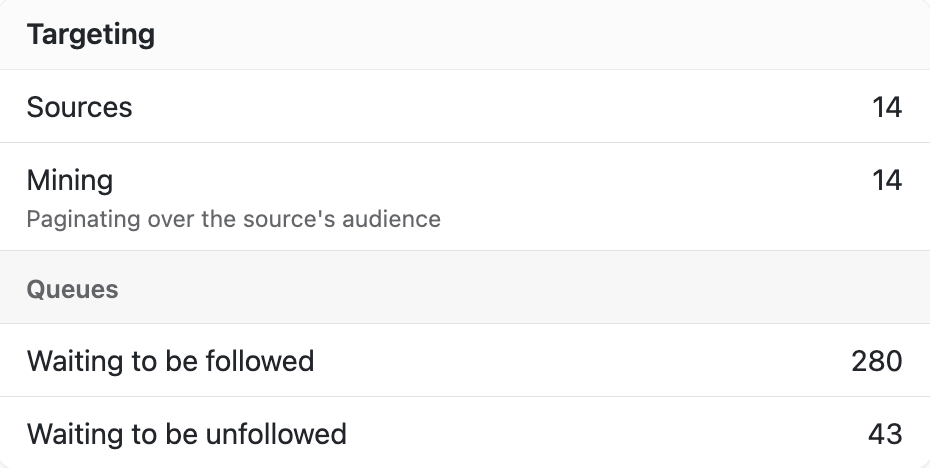
Also on this page, the Targeting widget shows:
- Sources — total sources added to the account.
- Mining — sources currently paginating through their audience.
- Waiting to be followed — users queued and ready for Oxelio to follow.
- Waiting to be unfollowed — users queued for unfollow.
This is a read-only summary. To add, edit, or remove sources, go to the full Sources page.
What to Expect
The Account Overview is a read-only summary — it doesn't change how the account behaves. Its purpose is diagnostic: the stats tell you what's happened so far, and the alerts tell you why an account may not currently be growing.
How to Configure
There's nothing to configure on this page itself — it's a summary view. To act on what you see:
- Open the account from the dashboard to reach its Account Overview.
- Check the four cumulative stats for overall progress.
- Review the alerts panel for anything requiring action.
- Check the Sources Summary to confirm targeting is active and see what's queued.
- Follow the relevant Help Center page to resolve any alert.
Dashboard Settings
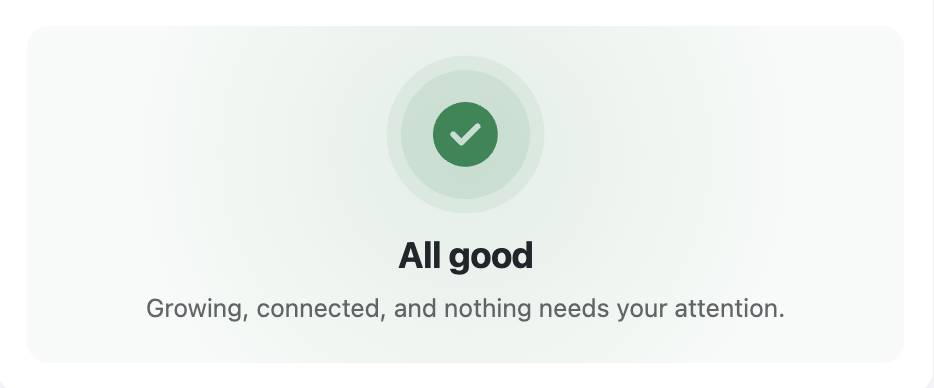
Growing, connected, and nothing needs your attention. Automation is running normally.
No action needed.
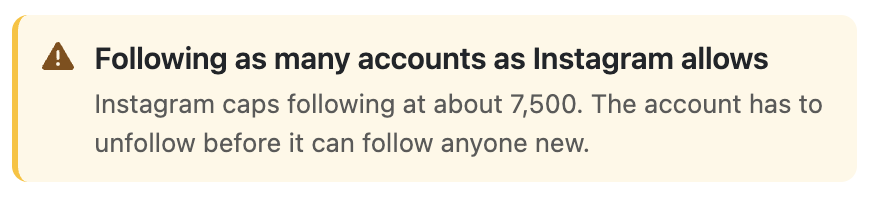
Instagram caps following at about 7,500. The account has to unfollow before it can follow anyone new. Oxelio pauses new follows automatically until the count drops.
Ask the client to manually unfollow accounts directly from Instagram until the count drops. Oxelio resumes follows automatically once the limit clears.
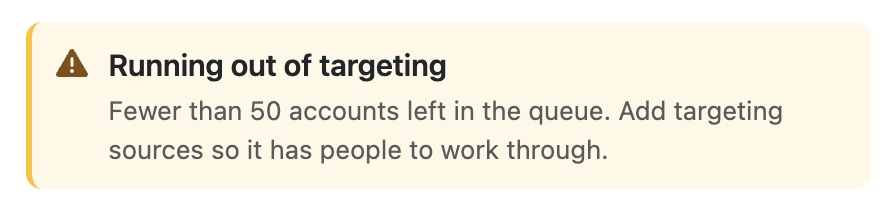
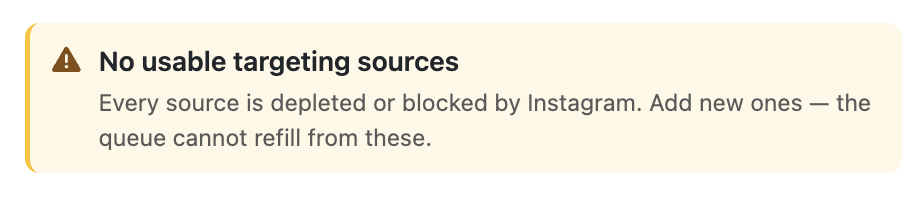
Every source is depleted or blocked by Instagram — the queue cannot refill from the current sources. This applies whether the account was set to follow or unfollow mode.
Go to Sources, remove the depleted or blocked sources, and add fresh ones. Growth will resume once the queue has people to work through.
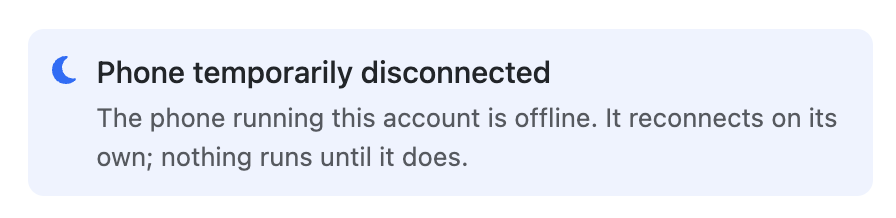
The phone running this account is offline. Nothing runs until it reconnects — this usually resolves on its own.
Wait for the device to come back online. If the alert persists for more than 24 hours, contact support.
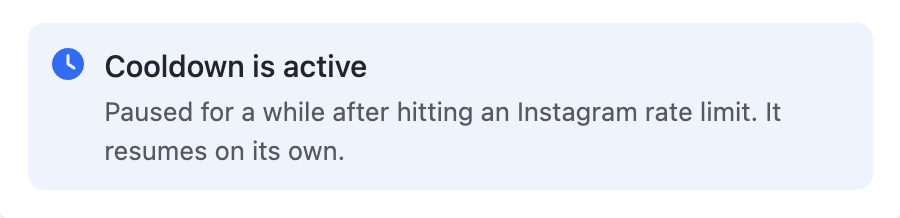
The account hit an Instagram rate limit. Oxelio has paused activity automatically and will resume on its own.
No action needed — activity resumes automatically. See Rate Limits for more detail.
Best Practices
- Check an account's overview whenever its growth looks flat — the alert panel usually explains why before you need to dig further.
- Treat alerts as the starting point for troubleshooting, not a full diagnosis — resolve them on the linked page for full context.
- Glance at the Sources Summary alongside the stats; an account can look "stuck" simply because no sources are active.
FAQ
What do the cumulative stats include?
Growth, Follows, Unfollows, and Followbacks — all counted cumulatively for the account, not per day or per campaign.
Why is my account showing zero growth?
Check the alerts panel first. Common causes include the account not being connected or having no active targeting sources.
Is the alert list on this page complete?
No. The alerts described here are examples of what you might see — other messages can appear depending on the account's situation.